How to create and sell Canva templates
Build an editable Canva template, test the buyer copy, and deliver it correctly through Etsy or your own checkout.
Create a design that survives editing
A Canva template is valuable when a customer can replace the sample content and still get a usable design. Start with one job: for example, a dog groomer’s service-and-price menu. The product is the editable layout and its working rules, not just an attractive preview.
Design against the awkward content
Build the menu from a blank composition. Include the business name, service groups, prices, contact details, and an optional image area. Then replace your sample with deliberately difficult content:
- A business name twice as long as the original.
- A service name that wraps onto two lines.
- A three-digit price and a price range.
- A business with no photo to add.
If a change breaks alignment, revise the layout before selling. Give text boxes sufficient width, make price alignment consistent, and include a simple instruction for removing the optional image area. These decisions save the buyer from redesigning your template.
Separate the creator’s plan from the buyer’s requirements
Canva currently restricts creation of template links to Pro and certain other eligible plans. Check that your account offers the feature before choosing this delivery method.
Canva’s licence also restricts how its content may be sold. Templates containing Pro content must be sold as Canva template links. Your own Pro access does not remove the buyer’s potential paid-content requirements. For a product labelled “works with Canva Free,” open the buyer copy with a separate Free account and export it. Inspect every element that triggers a payment or watermark.
Deliver a template copy through an access PDF
Create a template link, not a collaboration link to your master. Open it using a separate account and confirm that the recipient can create a copy while your original remains intact.
For Etsy, upload this PDF as the digital deliverable. Describe it as an access PDF for an editable Canva design so the buyer does not mistake it for a finished printable.
Make the listing show the edit, not just the result
Use one finished preview and one image identifying what the buyer can change. State the dimensions, number of layouts, and export use. If the layout fits A4 only, do not imply that a US Letter version or automatic resizing is included.
Test the link inside the exported PDF itself. A working link in your browser does not establish that the delivered document contains the same link.
Choose a template people need to reuse
Look for a task that changes often enough to make editing valuable. A groomer’s price menu changes when services or rates change. A tutor’s lesson announcement changes each week. A template for a single fixed message has less reason to be editable.
Write the buyer’s job in one line: “Update five services and publish a readable price menu.” This determines the editable fields and the export. It also stops the product drifting into a large bundle of loosely related social posts, flyers, and documents.
Build around the buyer’s content, not your demo text. A design that works only with a three-letter business name or five identical prices is an image of a template, rather than a dependable reusable layout.

Make a template link in the current Canva workflow
Canva’s documented route is to open the design, select Share, choose Template link—using See all if needed—then create and copy the link. Menu labels can change, so use the current help page if your account looks different.
A template link gives the recipient a copy workflow. A link granting edit access to the original is a collaboration tool. Test which one you have before listing the product: edits made by a buyer should not alter the master you deliver to later customers.
There is also a distinction between access to a template link and permission to export paid content. A customer may be able to open the design but still encounter a paid asset when exporting. Your listing needs to explain the requirements of the complete workflow.
Keep a small asset register
Record the origin of each non-original image, graphic, and font you add, and check that the permitted use covers a template sold to other people. A licence for one finished image does not necessarily permit distributing the asset in an editable product.
| Asset type | Record before selling |
|---|---|
| Your own illustration | Keep the editable source and a dated working copy. |
| Canva library element | Check the current content licence and any Free/Pro requirement. |
| An uploaded third-party photo or graphic | Keep the source, licence and the permission relevant to editable distribution. |
| Customer placeholder image | Label it as a placeholder and explain whether it is included. |
Start from your own layout instead of reselling an existing Canva template with a new colour. Meaningful composition, content structure, and usability are the work your buyer is paying for. If an asset’s licence is unclear, replace it before launch rather than trying to solve it after an order.
Do not sell Canva stock elements as standalone assets. An editable template licence and permission to distribute a flattened finished file are different uses; check the applicable content rules for the format you intend to deliver.
Design instructions around the moment of confusion
Useful instructions answer a specific hesitation: how to replace an image, how to change the price text, and which export to choose. A ten-page guide to every Canva feature makes those answers harder to find.
For the menu example, a one-page guide can include three annotated screenshots from your own design: open a copy, replace the marked fields, and export the finished menu. Use screenshots of the account requirements you actually tested; do not imply that every Canva user sees the same options.
Test on the device you advertise. If editing is much easier on a desktop browser, say that. “Editable in Canva” does not tell a customer whether a phone-only workflow will be comfortable for a complex layout.
Keep updates from breaking older purchases
Store a versioned master and keep a record of the access link used in each product PDF. After an update, test the exported PDF again and check the buyer-copy flow. Do not delete or replace an access route casually: previous customers may still use the document they downloaded.
State whether the sale includes future updates, the current version only, or a specific support period. Choose wording you can honour. An undefined promise of lifetime support creates an ongoing obligation unrelated to the price of one template.
What makes a larger bundle worth buying?
Shared structure and a coherent task. A menu, booking notice, and service-update card can share typography and content rules. Ten almost identical pages with different colours do not necessarily offer ten times the value.
A second worked example: a wedding invitation
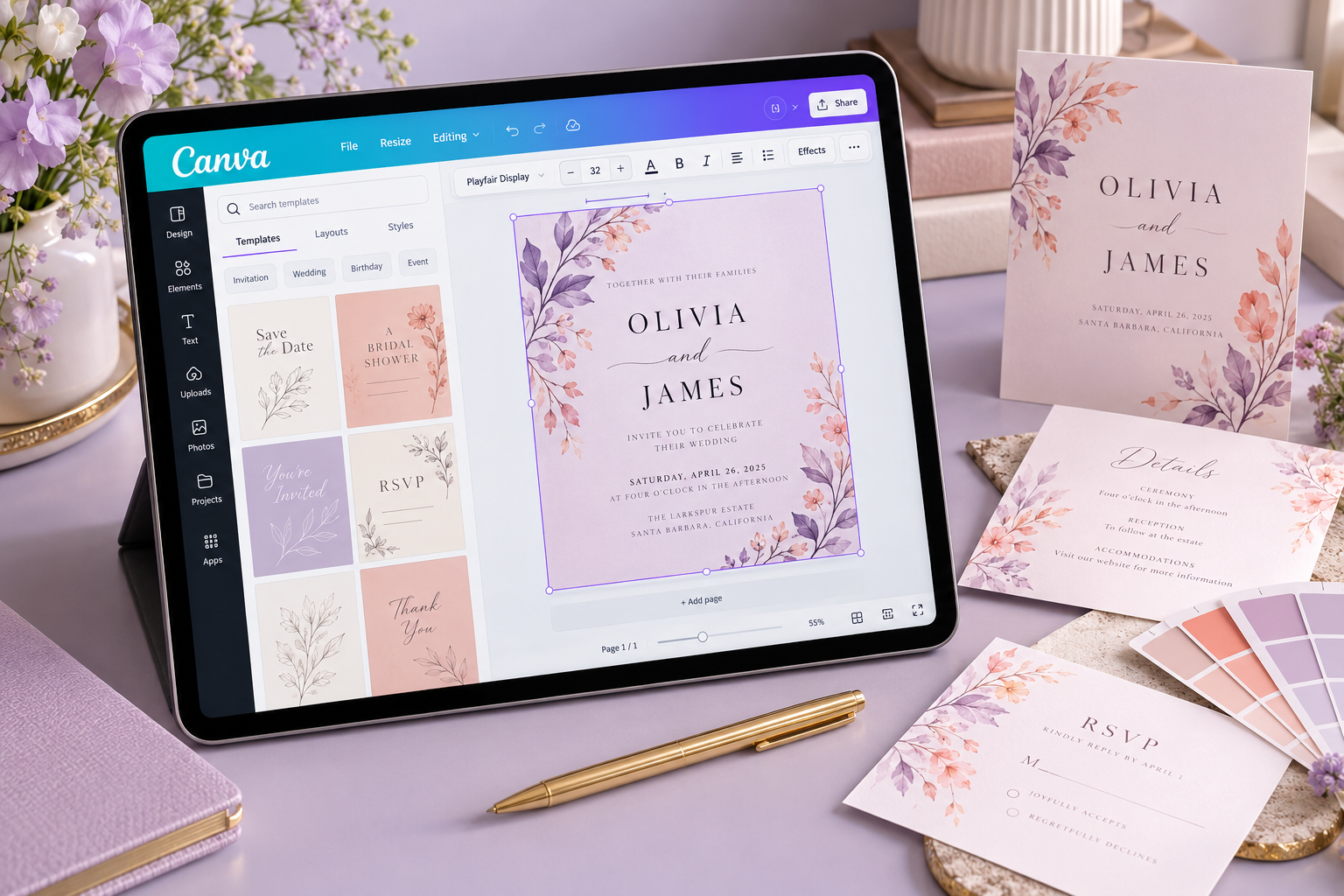
For an editable wedding invitation, prepare a 5×7-inch print layout. If you also promise mobile sharing, create and test a separate phone-oriented layout rather than assuming the print version suits both uses.
Include editable names, date, venue and RSVP details. Use the layout and long-text checks above, then complete a print-specific handover test: open the delivered access PDF, create a buyer copy, replace a photo, export the named format and print a sample at its intended size. Include download and printing instructions and contact details in the short guide.
Check the Etsy delivery package
The earlier guide records Etsy’s instant-download allowance as up to five uploaded files, with a maximum of 20 MB per file. Verify the current digital-listing requirements before uploading. An access PDF can deliver the Canva template link through that flow.
Describe the product as editable in Canva, state the account requirements already tested above, and explicitly say that no printed item ships. Check that listing images show the actual included formats and that the buyer knows which matching pieces are excluded.
Compare buyer tasks through real listing examples
| Observed example | Asking price in the earlier research | Buyer task |
|---|---|---|
| 5×7 invitation · KingOfKings22 | $6.00 | Edit a specific event invitation. |
| 900+ social templates · CarbonandCopyDesigns | $2.99 during a promotion | Access a large reusable social-content library. |
These October 2026 listing observations are not sales data and can change. The two offers are not direct competitors: compare the customer’s task and usable scope, rather than treating page count as value.
Choose a checkout outside Etsy
A Canva template can use the same access PDF across sales channels, but each checkout needs its own product page, payment setup and delivery test. Choose a route based on how buyers will find you and how much storefront work you can maintain.
| Route | How to deliver | Work to plan for |
|---|---|---|
| Payhip product page | Upload an access PDF as a digital product. Payhip provides a download page and a receipt with a download link. | Create the offer and bring relevant visitors to its product page. |
| Your own Shopify store | Use a digital-delivery app to attach and deliver the access PDF. | Configure the storefront, checkout, delivery app and support route. |
| Your existing website | Connect a checkout with digital delivery and link to it from the sales page. | Test the handoff from your site to payment and then to the purchased file. |
Having a checkout does not establish that you have demand. For a first test, pick one channel and one template. Track product-page visits, paid orders and support time before copying the offer onto several storefronts. Check the platform’s current charges and seller eligibility before committing; this is a workflow comparison, not a fee ranking.
Official setup references: Payhip digital products and Shopify digital delivery.
Build a direct-sales page around the editable result
Use a title that identifies the buyer and task, such as “Editable service menu for dog groomers — A4 Canva template.” Show a completed example and a second preview identifying the editable fields. Add one short demonstration of replacing text and exporting the result.
- Included: layout count, dimensions, access PDF and instructions.
- Requirements: Canva account, any paid elements, and the export formats you tested.
- Usage: state what the buyer can do with the finished design and whether redistribution of the editable template is prohibited under your terms.
- Delivery: explain that payment provides an access PDF containing a template-copy link.
- Support: provide a working contact and explain the help included with the purchase.
Keep the scope and requirements consistent between your preview, checkout and access PDF. A direct store should be understandable to someone who has never seen your social profile. Avoid promising custom editing unless you have priced and scheduled that service.
Test the purchase-to-template journey
- Create a separate product record and attach the exported access PDF, not your editable master.
- Use the checkout’s supported test-order workflow and check both the confirmation page and receipt email.
- Download the PDF and follow its link with a separate Canva account. Confirm that it creates a buyer copy.
- Replace the sample text, export in the advertised format and check for watermarks or paid-content requirements.
- Record the product version, test date and any support instructions needed to complete the journey.
For promotion, demonstrate one useful edit to an audience that performs the task. Link to the specific product page and describe its use precisely. If visitors arrive but do not buy, inspect offer clarity and fit before assuming a different checkout will solve the problem. Treat visits, purchases and successful product use as separate signals.
Official references
- Canva: products for sale and template rules
- Canva: licensing explained
- Canva: creating template links
- Etsy: digital listing and file requirements
Platform details checked 13 October 2026. Follow the current official guidance if requirements change.